

Second Monitor for a Laptop: How to Choose, Set Up, and Use
Looking for the right second monitor for a laptop? This guide covers what to look for when choosing one, how to check your laptop’s compatibility, and how to connect and set up an external display using USB-C or HDMI.
What Is a Second Monitor for a Laptop?
A second monitor is an external display connected to your laptop and used together with the laptop’s built-in screen.
- Laptop built-in display = Primary display: This is usually your main screen for everyday work.
- External monitor = Second display: The external monitor adds extra screen space for other apps, documents, or content.
You can use the two screens in different ways:
- Extend: Each screen shows different content, giving you a larger workspace.
- Duplicate/Mirror: Both screens show the same content, which is useful for presentations or screen sharing.
A second monitor can be either a desktop monitor or a portable monitor. Desktop monitors are better suited to fixed workspaces, while portable monitors are lighter and easier to carry with a laptop for travel, hybrid work, or small desks.
Why Use a Second Monitor With Your Laptop?
A second monitor is useful when you often need to view two types of content at the same time. Instead of constantly switching between windows, you can keep important apps, documents or tools visible side by side.
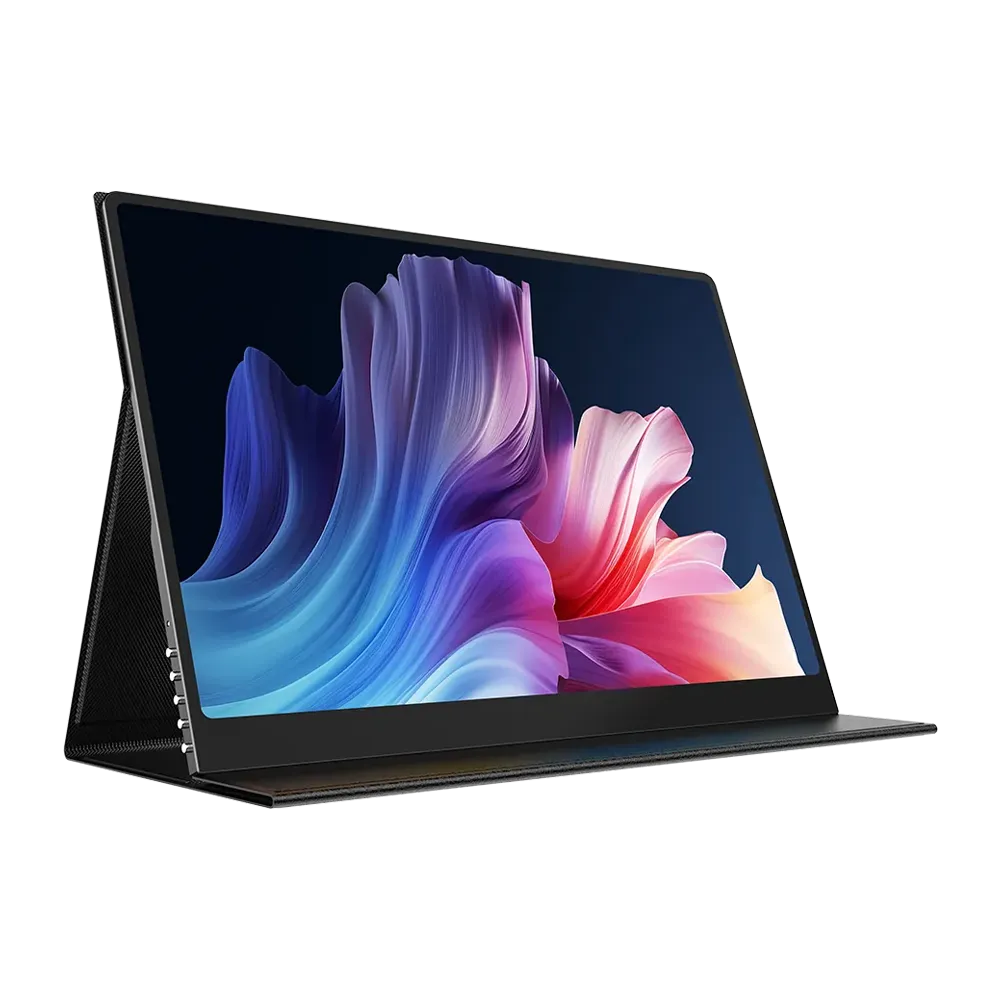
Ready to Upgrade Your Laptop With a Second Monitor?
Discover UPERFECT portable monitors with sharp visuals, high refresh rates and versatile connectivity for a more productive dual-screen setup.
Explore UPERFECT MonitorsMore Screen Space for Multitasking
Keep email and Excel, a browser and document, or a PDF and notes open at the same time. This is especially useful when comparing information between applications.
Better Work and Productivity
For remote work and business tasks, one screen can be used for your main work while the other shows email, Teams, Slack, meetings or supporting documents.
Coding and Programming
Developers can keep code on one screen and documentation, a terminal or live preview on the other, making it easier to work across multiple tools.
Creative Work
For video, photo and design work, one screen can hold the editing interface or timeline while the second shows a preview, reference image or source material.
Gaming and Entertainment
A second monitor can display Discord, chat, streaming controls, music or guides while the game remains on the main screen.
Do You Really Need a Second Monitor?
If most of your work happens in one application at a time, a second monitor may be less necessary.
If you frequently find yourself minimizing windows, using split screen, or switching back and forth between tabs, an additional display is more likely to be useful.
How to Choose a Second Monitor for Your Laptop?
This section start by choosing between a portable and desktop monitor, then compare the key specifications you should consider when choosing a second monitor.
Portable Monitor vs Desktop Monitor: Which Is Better?
A desktop monitor generally prioritizes screen size and ergonomics, while a portable monitor prioritizes mobility and convenience.
| Feature | Portable Monitor | Desktop Monitor |
|---|---|---|
| Portability | High | Low |
| Typical screen size | Smaller | Larger |
| Desk space | Low | Higher |
| Easy to store | Yes | Usually no |
| Travel friendly | Yes | No |
| Single-cable USB-C possible | Often | Some models |
| Permanent workstation | Good | Very good |
| Mobile workstation | Very good | Poor |
If you mainly work at the same desk and want the largest possible screen, a desktop monitor may be more suitable.
If you regularly move between locations or have limited desk space, a portable monitor may be more convenient.
Factors to Consider When Choosing a Second Monitor
Once you have decided between a portable and desktop display, focus on the specifications that directly affect how the monitor feels in daily use.
Screen Size
Choose screen size based on how much portability you need.
- 14": best for travel, commuting, and small desks.
- 15.6": a balanced choice for work, study, and everyday use.
- 16": better if you want more workspace without losing too much portability.
- 18"+: better for gaming, creative work, or a mostly fixed setup.
For most laptop users, 15.6" to 16" is the best balance between portability and screen space.
Resolution
Resolution affects text sharpness, image detail, and usable workspace.
- FHD (1920 × 1080): enough for office work, browsing, study, and general use.
- 2K / QHD: better for coding, spreadsheets, design, and users who want sharper text.
- 4K: best for photo editing, video editing, and detail-focused creative work.
Choose FHD for everyday use, 2K for sharper visuals, and 4K mainly for professional creative work.
Refresh Rate
Refresh rate matters most for motion smoothness.
- 60Hz: suitable for office work, coding, study, and video.
- 120Hz: smoother for daily use and casual gaming.
- 144Hz: a better fit for gaming and fast-moving content.
- 240Hz: mainly for competitive gaming.
For work, 60Hz is usually enough. For gaming, 120Hz or 144Hz is more practical.
Brightness
Brightness matters more if you work in bright rooms or near windows.
- 250–300 nits: usually enough for normal indoor use.
- 300–400 nits: better for brighter offices and mixed lighting.
- 400+ nits: useful if you often work in very bright environments.
For most indoor users, 300 nits or above is a safe target.
Panel Type and Viewing Angles
For a second monitor placed beside your laptop, viewing angles matter because you may not always look at the screen straight on.
- IPS: a good all-round choice for work, study, and creative tasks, with wide viewing angles and relatively consistent color.
- OLED: offers excellent contrast and deep blacks, making it attractive for media and creative work, but it usually costs more.
- TN: often has fast response times and lower prices, but typically has narrower viewing angles and weaker color consistency.
For most laptop users, IPS is the most practical choice. OLED is better if image quality and contrast are a priority, while TN is mainly worth considering for budget or high-speed gaming use.
Ready to Upgrade Your Laptop With a Second Monitor?
Discover UPERFECT portable monitors with sharp visuals, high refresh rates and versatile connectivity for a more productive dual-screen setup.
Explore UPERFECT MonitorsWeight and Thickness
This matters mainly for portable monitors.
If you carry the monitor daily, even a small difference in weight can become noticeable once you add:
- cables;
- charger;
- protective cover;
- adapters.
If travel is a priority, choose a model that is light enough to carry together with your laptop, not just a thin panel on paper.
Ports
Common monitor connections include:
- USB-C
- HDMI
- mini HDMI
- DisplayPort on some models
USB-C can provide a simpler setup when the laptop supports video output, as a single cable may carry both video and power. HDMI is also widely used and provides a reliable option for laptops without USB-C video output. For broader compatibility, look for a monitor with both USB-C and HDMI.
Power Requirements
Some portable monitors can receive both video and power through a single USB-C cable. However, a USB-C port that supports video output does not always provide enough power to run the monitor.
For a simpler setup, look for a monitor that supports single-cable USB-C operation, and check that your laptop can provide sufficient power through its USB-C port.
Check Your Laptop Compatibility Before Buying
Does Your USB-C Port Support Video Output?
All USB4 and Thunderbolt ports support video output, but this is not necessarily the case with USB 3.0, 3.1 or 3.2 ports. Some USB-C ports support video output, while others are limited to data transfer and charging.
USB-C ports that support video output are often marked with a DisplayPort or Thunderbolt symbol. If there is no symbol, check your laptop’s specifications or user manual to confirm whether the port supports video output.
The illustration below shows the most common USB-C port types and whether they support video output.

If your device does not label its USB-C port, you need to refer to that device's documentation.
Does Your Laptop Have HDMI?
If your laptop has an HDMI output, you can usually connect it directly to a second monitor using an HDMI cable. Some portable monitors use mini HDMI, in which case you will need an HDMI-to-mini-HDMI cable.
HDMI carries video and audio, but a portable monitor may still need a separate USB connection for power. If your laptop does not have HDMI, check whether its USB-C or Thunderbolt port supports video output instead.

How Many External Monitors Can Your Laptop Support?
The number of external monitors your laptop can support depends on its graphics hardware, processor, operating system and available video outputs. Having several USB-C or HDMI ports does not always mean that all of them can drive separate displays at the same time.
Check the manufacturer’s specifications for terms such as “external display support”, “maximum displays” or “display output” before buying multiple monitors. Also check the maximum supported resolution and refresh rate, as these may change when more than one external display is connected.
How to Set up a Second Monitor With a Laptop?
Connect the Monitor Using HDMI or USB-C
Option 1: USB-C to USB-C

If your laptop supports video output over USB-C and your monitor accepts USB-C video input, connect the two devices using a compatible USB-C cable.
A supported setup may allow a single cable to carry:
- video
- data
- power
However, cable capability also matters.
Not every USB-C cable supports the same features.
A cable intended mainly for charging may not necessarily provide the video or data capabilities required for an external display.
For reliable results, use the monitor's supplied cable or a cable that clearly supports the required video standard.

Option 2: HDMI
If USB-C video output is unavailable, HDMI may be the easier option.
Connect the laptop's HDMI port to the monitor.

Depending on the portable monitor, you may need:
HDMI → HDMI
or
HDMI → mini HDMI
Some portable monitors still require a separate USB cable for power when using HDMI for the video signal.
A typical setup might therefore look like:
Laptop HDMI → Monitor HDMI
plus:
USB power → Monitor

Always follow the connection diagram provided by the monitor manufacturer.
What If the Monitor Says “No Signal”?
If your second monitor does not display an image, check the setup in this order:
- Check power and input source: Make sure the monitor is powered on and set to the correct input, such as USB-C or HDMI.
- Check the cable connection: Reconnect the cable at both ends and make sure it is fully inserted. If possible, use the cable supplied with the monitor.
- Check display settings: Open your system’s display settings and see whether the external monitor is detected.
- Try another cable or port: If the monitor is still not detected, test another compatible cable or video output port.
Adjust Display Settings on Windows and MacOS
After the monitor is connected, the operating system should normally detect it automatically.
You can then decide whether to mirror or extend the desktop.
Windows
On current versions of Windows, open:
Settings → System → Display
You should see numbered display boxes representing the laptop and external monitor.

From here, you can:
- identify the displays;
- rearrange their positions;
- change resolution;
- adjust display scaling;
- choose the primary monitor;
- select duplicate or extended mode.
For most dual-screen work, choose:
Extend these displays
Then drag the display boxes so their virtual positions match their physical positions on your desk.
For example, if your portable monitor is physically on the left side of the laptop, move its display box to the left.
This makes the mouse pointer move naturally between screens.
macOS
On macOS, open:
System Settings → Displays

The available options depend on your Mac and macOS version, but you can generally:
- arrange displays;
- change resolution;
- adjust scaling;
- choose the primary display;
- configure mirroring;
- configure extended desktop mode.
For an extended workspace, make sure mirroring is disabled unless you specifically want both screens to show the same content.
Position the Monitor Correctly
After configuring the software, adjust the physical position of the second screen.
For side-by-side use:
- align the displays at a comfortable height;
- angle the second monitor toward your normal viewing position;
- place frequently used windows on the screen that is easiest to view;
- adjust brightness so the two screens do not feel dramatically different.
Portable monitors with adjustable stands are useful here because the viewing angle can be changed depending on the workspace.
A Portable Second Monitor for Flexible Workspaces
If you want more screen space without setting up a permanent desktop monitor, the UPERFECT 16-inch OLED Portable Monitor is a strong option for both work and entertainment. Its 3K OLED display delivers sharp detail, high contrast and vivid colour, while the 120Hz refresh rate provides smoother motion for gaming and everyday use.

It is particularly suitable for users who need better visual quality for photo editing, video editing, design work or content creation, while still wanting a monitor that can travel with a laptop.
Key features include:
- 16-inch OLED display
- 3K resolution
- Up to 120Hz refresh rate
- USB-C connectivity
- HDMI connectivity
- Suitable for both productivity and gaming
For the highest refresh rate, connection type matters: USB-C supports up to 120Hz, while HDMI supports up to 3K at 75Hz or 2K at 120Hz.
FAQ
Does a Second Monitor Slow Down a Laptop?
Usually not for everyday tasks such as browsing, office work or studying. However, running a high-resolution or high-refresh-rate second monitor can place more demand on the laptop’s graphics hardware, especially during gaming, video editing or other graphics-intensive tasks.
Does Using a Second Monitor Drain Laptop Battery Faster?
Yes. An external monitor can increase power consumption, particularly if the laptop is also supplying power to a portable monitor through USB-C. For longer sessions, connecting the laptop to its charger is usually recommended.
Can I Use a Second Monitor With the Laptop Lid Closed?
Yes, most laptops can be used with an external monitor while the lid is closed, but you may need to change the power or sleep settings first. The exact steps depend on Windows or macOS.
Can the Laptop and Second Monitor Use Different Resolutions or Refresh Rates?
Yes. In most cases, each display can use its own supported resolution and refresh rate. For example, your laptop may run at 120Hz while the second monitor runs at 60Hz.
Why Do Colours Look Different on My Laptop and Second Monitor?
Different panel types, brightness levels, colour profiles and factory calibration can make the two screens look different. Adjusting brightness and colour settings can help, while colour-sensitive creative work may require calibration.